Geometry Dash Lite Beginner Guide: Jump Timing & Controls
Start Stereo Madness, use click or Space, and learn to judge the spike, your jump and the landing in the opening section.
Updated
01 Open the first level
Select Play now on the website and wait for the game menu. Select the large play button inside the game, then select Stereo Madness in the level selector. Click inside the player before using Space. The character moves forward automatically; a left click or Space triggers a jump on desktop. Touch support depends on the device.
02 Read the opening spike and landing
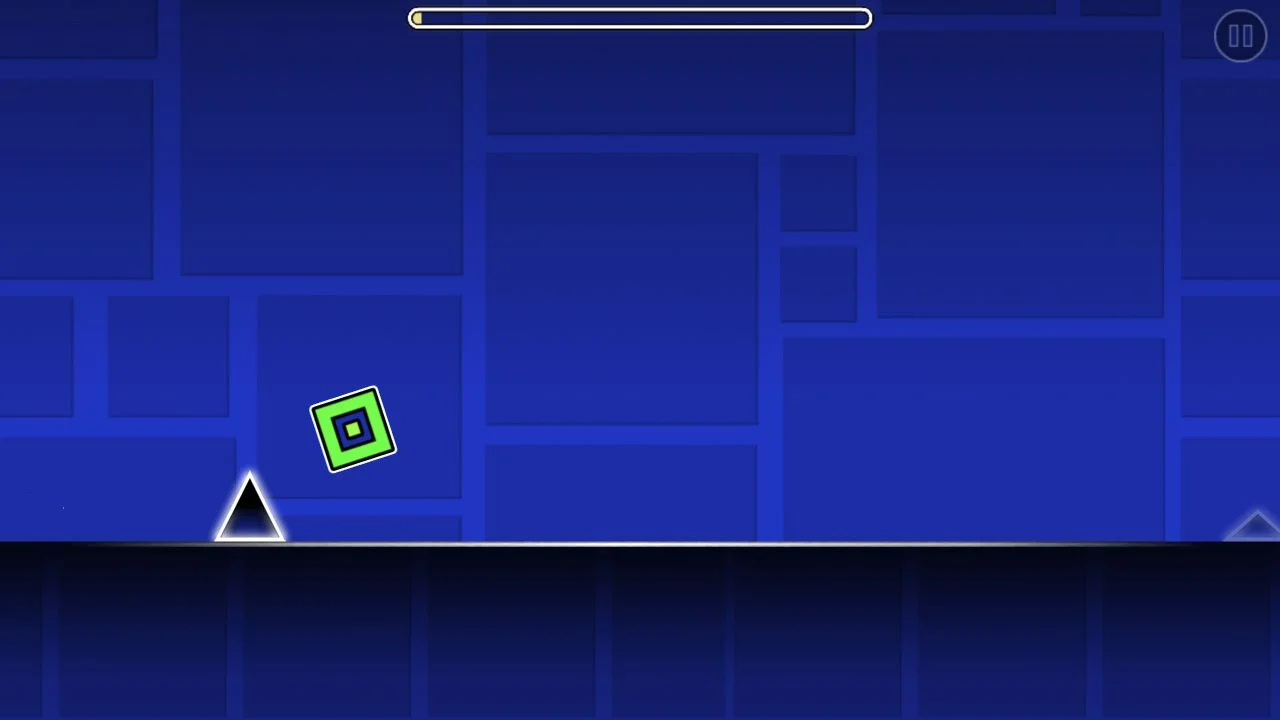
The screenshot below shows an early single spike in Stereo Madness, with the cube already airborne just beyond it. Read the sequence in three parts: approach the spike, rise above its tip, then land on the clear floor to its right. The cube’s rotation is not a reason to press again in midair. Keep looking toward the next obstacle while the jump finishes.
 123
12303 Was the jump early or late?
If the cube hits the front of the spike while still low, move the input slightly earlier on the next attempt. If it rises but comes down onto the spike, the jump started too early: delay it a little. Clearing this spike but hitting the next obstacle is a separate landing-and-next-jump problem. Watch where the cube touches down before changing both inputs.
04 Change one input on the next attempt
Let the game begin the next attempt after a collision. Use the same input for several tries and choose the approaching spike as your visual reference. Move the jump point a small distance earlier or later, then observe the result. Avoid changing screen size, input method and timing at once: you will lose track of which change helped.
05 Keep the website restart for a stuck session
A normal collision does not require the website’s Restart game button. That button reloads the entire game, returning you to its menus. If inputs stop responding, first click inside the game to restore focus. If the session remains stuck, restart it.